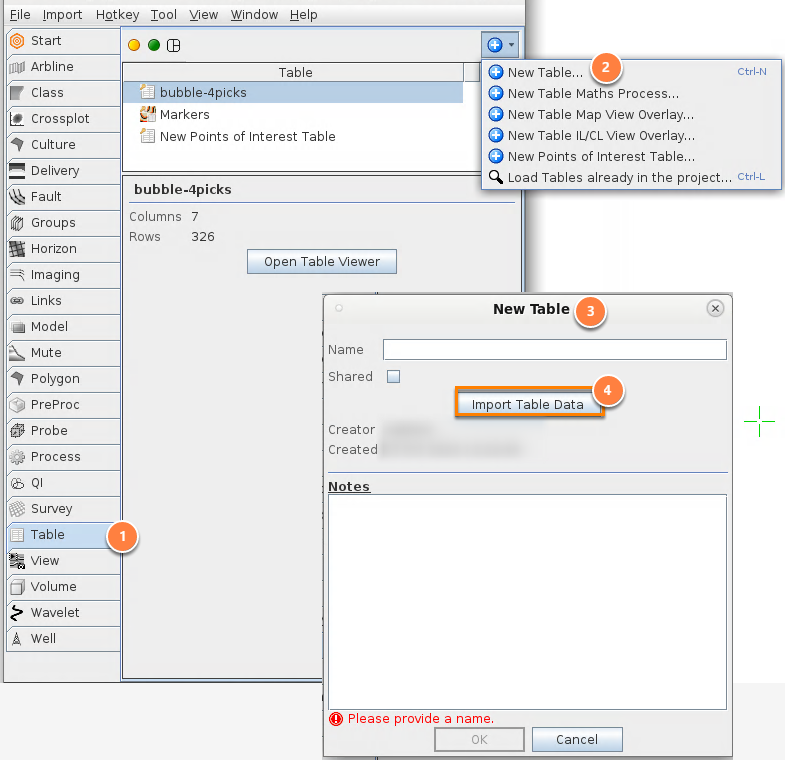
In the Table panel, click the blue + button and select New Table.
The New Table window will appear.
Click the Import Table Data buttonand select the preferred *.csv file in the Load Tables window.
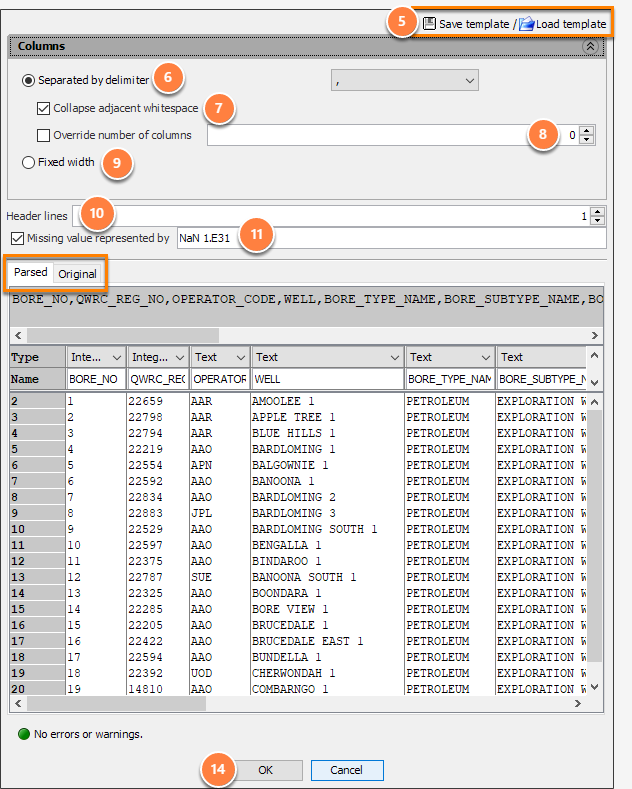
Save template/load template: Save/load the import configuration to a file for reuse.
Separated by delimiter:
Use this for data values separated by a special “delimiter” character
The delimiter is a character used to separate columns: usually a comma, tab or space character
Select a delimiter from the list
Collapse adjacent whitespace: treat multiple, contiguous spaces as a single column break
Override number of columns: override the automatically detected number of columns
Each line is divided into this many columns.
Additional text after the last column is excluded.
Fixed width
Blue “+” icon: add columns
Adjust the column width to the preferred size;
OR click the Use mouse adjuster link to set the column width via the mouse arrow.
In the Original tab, place the mouse arrow on a divider and drag left/right to the correct column width.
Header lines: The number of lines to skip at the start of the file. These lines are ignored.
Missing value represented by: Store data matching any of these values as a NaN (empty) value. To match multiple values, include each one separated by a space.
Parsed: The start of the file is read and divided into fields according to the settings.
The headers for the columns vary according to the type of data.
See details on the import page for each type.
Original: View the start of the file in the original format, with row and column numbers.
If there are no errors or warnings, click OK.
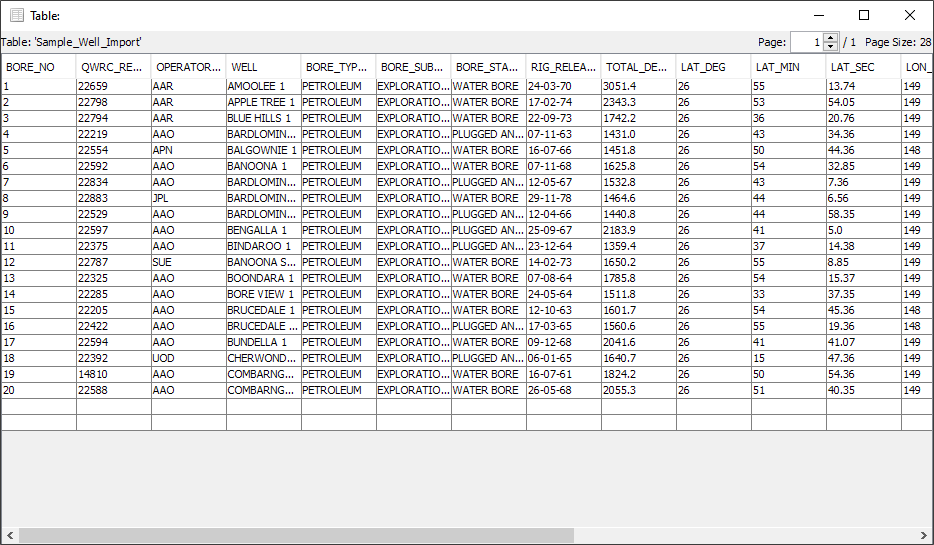
A table containing the imported data is available in the Table panel.
Click the Open Table Viewer table to see the imported data.