Linking Insight and Petrel
The Petrel Link module connects displays and data between Insight and a Petrel project. The cursor and navigation between the applications is shared while the link is active.
Data from Petrel is also available to Insight when linked. SeeInsight and Petrelfor the types of data that can be shared. Once included in the Insight project, local copies of the Petrel data can be created and modified in Insight (seeMaking local copies). To send changes back to Petrel, synchronise the updated items (seeSynchronise Data).
The Petrel Link supports Petrel versions from 2012 to2024.
Note: The link does not convert units or coordinate reference systems. If the project X/Y units are different, then the Petrel Link will fail to establish a connection. To use a different project CRS, transfer data using the link to a new Insight project (preserving the native CRS), then import the data from Insight to Insight, while converting the CRS.
Tip: The link does not transfer polygons, but they can be imported manually into Insight (see How do I export Polygons from Petrel to DUG Insight?).
Connect Insight and Petrel
The link establishes a connection between an open Petrel project and an Insight project.
- Launch Petrel.
- Open a Petrel project
- Launch Insight.
- Open an Insight project
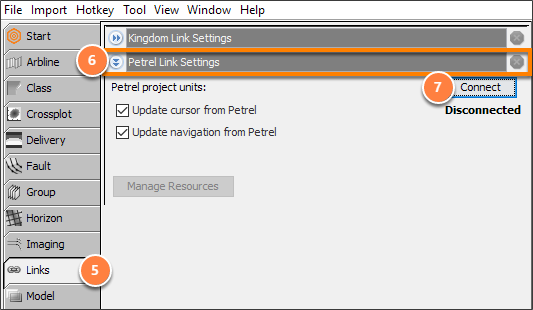
- Open the Links tab in the Control Panel.
- Expand Petrel Link Settings
- Click Connect.
- The connection status will update to "Connected"
- The Manage Resources button will be enabled.
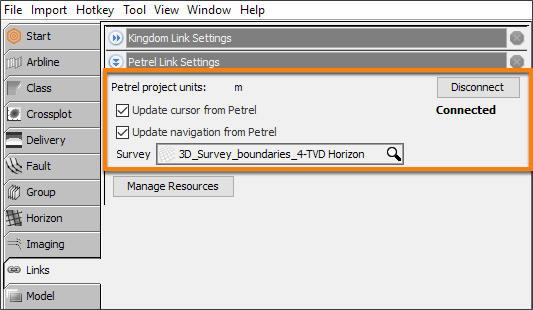
- Petrel project units: The units for the linked project
- Update cursor from Petrel: Synchronise Insight’s cursor (view crosshairs) with Petrel’s Select/Pick cursor.
- Update navigation from Petrel: Synchronise Insight’s view navigation markers with the selected inline and crossline locations in Petrel.
- Survey: Select the survey for determining IL/CL coordinates.
Note: Only the coordinates of the currently displayed slice and the first intersecting slice from Petrel are shown in Insight.
For example:
- Petrel’s interpretation window is displaying inline 1000 and two crossline slices 1500 and 1750 from a seismic cube
- Insight will display markers at inline 1000 and crossline 1500.
Link Petrel resources in Insight
By default, linked data is read directly from Petrel. When the link is disconnected or the Petrel project is closed, the data will be unavailable. To create a copy that is available when the link is disconnected, see Making local copies.
When linking remote data, a new survey is created if there is no matching survey in the Insight project.
When multiple users share a system, each user sees their own instance of the link. If the Manage Resources shows the wrong Petrel project, see Why is the Petrel Link showing me a different project after connecting?
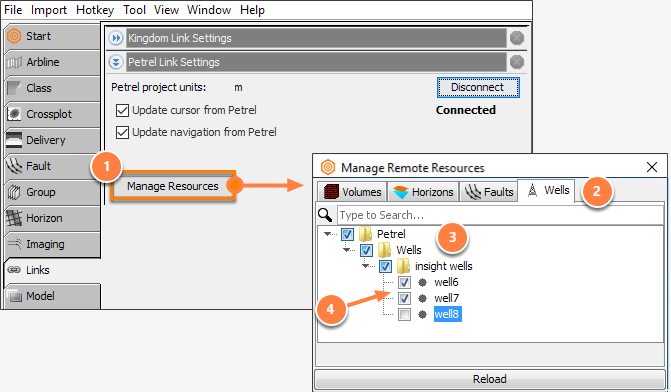
- Click the Manage Resources button to display the Manage Remote Resources window.
- Select the Volumes, Horizons, Faults or Wells tab.
- Expand folders to view the list of Petrel items
- Search by entering text in the search field
- Check each of the items to include in Insight.
- In the example, two wells will be remotely linked in Insight.
- If items have been added or removed from the Petrel project, click Reload to refresh.
Selecting components for linked wells
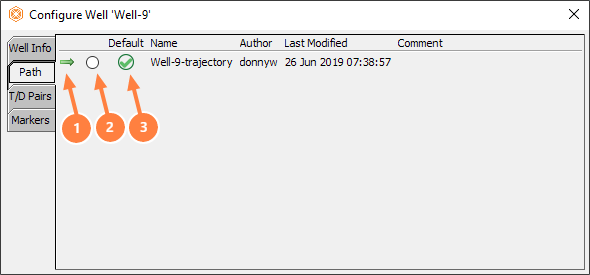
In the Insightwells tab, open the Configure Well window (use double-click on the well). Select the type tab for the component (Path, T/D Pairs or Markers):
- The arrow indicates the active item.
- Click here to select a different item.
- The default is chosen when there is no selection.
- Click the Default button to set an item as default.
Making local copies
Remotely linked items are listed with a "(Petrel)" label. To make changes to these items, create a local copy. Locally copied items are listed with a “(Petrel + Insight)” label.
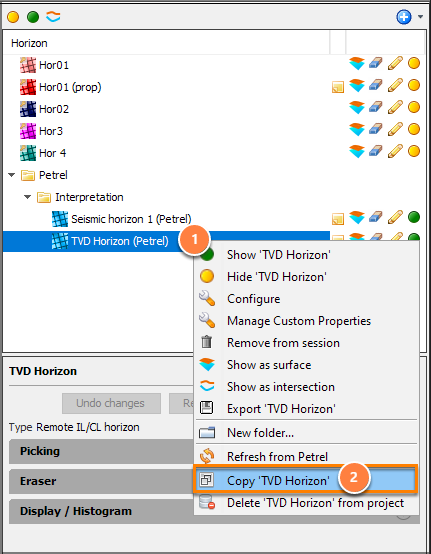
- Right-click the remote item.
- Click Copy [item] to create a local copy.
- This item will be labelled as "Petrel + Insight".
After local copy has been created, it can no longer be un-checked in the Manage Remote Resources window. This is to avoid losing changes made in Insight.
Note: Insight attempts to match the volume compression settings used by Petrel.
Disconnecting the Petrel link
It is important to disconnect the link before closing Petrel. If Petrel is closed when the user is performing an operation, there is a chance that the projects will be out of sync and data could be lost. To avoid any loss of data, we recommend disconnecting the Petrel Link Insight before closing Petrel.
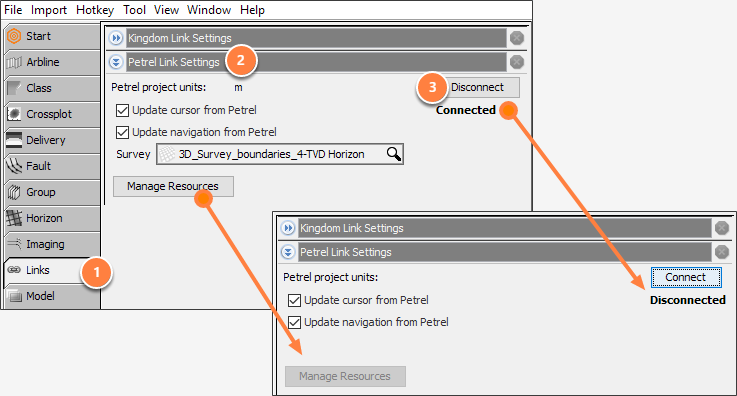
- Open the Links tab in the Control Panel.
- Expand Petrel Link Settings
- Click Disconnect.
- The connection status will show "Disconnected"
- The Manage Resources button will be disabled.
- Survey option will not be shown.