Using the Kingdom Link
The Kingdom Reader allows you to read and transfer data from your Kingdom database. In this tutorial, we will show you how to:
- Link resources from Kingdom database to Insight.
- Create local (Insight) copies of those resources.
- Refresh from Kingdom database.
However, it is important to note that:
- Linking horizons and volumes from a Kingdom database will also import the survey assigned to them.
- The Kingdom Readerrequires both projects to be in exactly the same CRS to transfer data, including project units. No CRS conversion occurs across the link.
- Data is read fromthe remote application and not copied to the disk. For well data, you will see information including log curves, checkshots, deviations and markers/tops. Similar to a database well in Insight, you can also select multiple checkshots and marker sets for wells linked to Kingdom. Insight will fall back to straight deviation for a well if it is unable to load a well path from the database.
- Kingdom polygonsare not stored in the Kingdom database and thus will not appear in the Manage Remote Resources window. To import a Kingdom polygon, open the Import menu in the Control Panel, select Polygons and change the file type to the Kingdom Planimeter Polygon format (.plg) (see How do I import a Kingdom polygon to use in Insight?).
Link resources (item) from Kingdom database to Insight
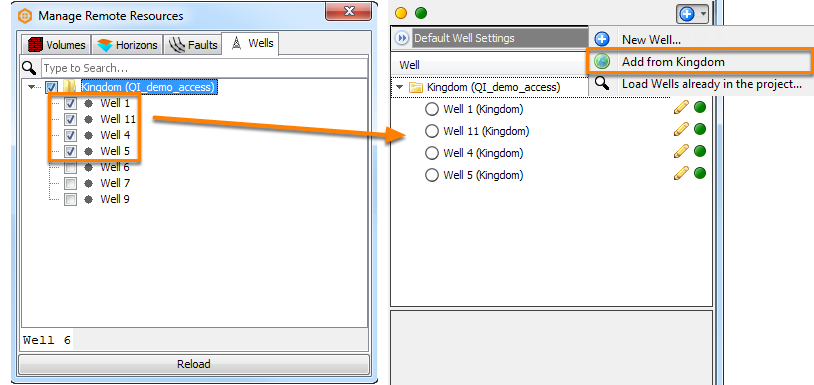
- At the Manage Remote Resources window, click an item tab (Volumes/Horizons/Faults/Wells) to display all the items of that type from your Kingdom database.
- Select the horizons, volumes, faults and/or wells check boxes to choose the items that you want to link to Insight.
- You can also search for items in a tab by typing the item names in the search field.
- Ticked items will be shown in Insight in their appropriate tabs.
If the Kingdom database has been updated to add or remove certain items, click the Reload button to refresh the information that can be linked. The Reload button updates the display of the Manage Remote Resources window.
Select deviation/checkshot/marker from well configuration
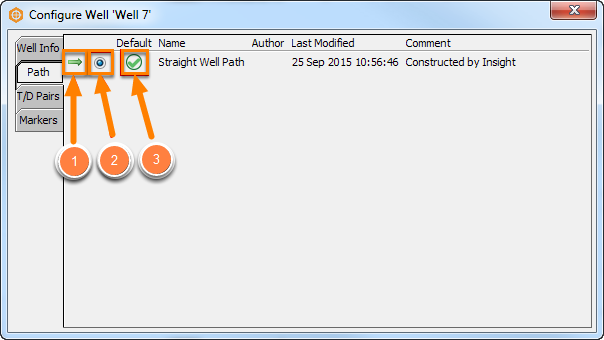
After linking wells from a Kingdom project, double click the well in Insight to open the Configure Well window. Click on the Path, T/D Pairs and Markers tabs to choose the deviation, checkshot and marker to use.
- The arrow on the left indicates the item which is currently in use.
- Click on the radio button to select a different item to use. If there are no items selected, the well will choose the default item.
- Click on the Default button to select that item as the default. A tick mark indicates the default item.
Indexing Kingdom volumes
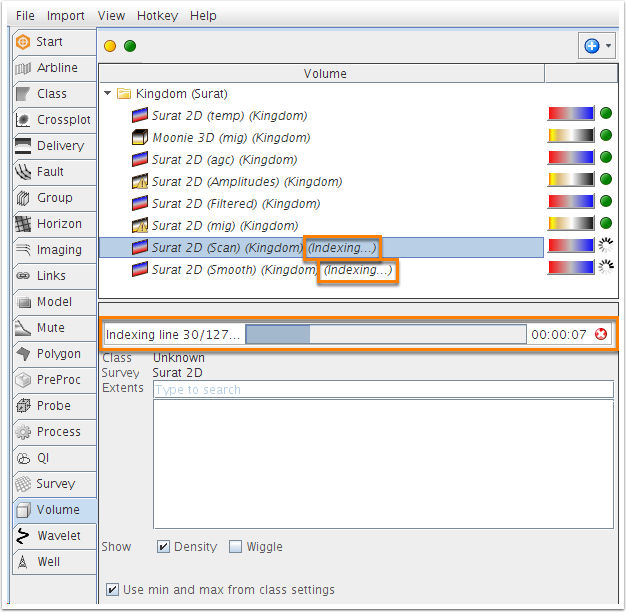
When linking a volume from a Kingdom database, if the Kingdom Reader encounters a volume without an index, it will automatically start analysing the volume to re-index it. All 3D volumes will be unusable until successfully indexed; 2D volumes will only allow you to use lines that are indexed.
The speed it is indexed varies depending on the size of the volume. You can monitor its progress in the Details Panel (see image above) and cancel the indexing by clicking the close (x) icon on the right.
Note: This does NOT modify the Kingdom project in any way. The new index files are saved within Insight's project directory.
If the indexing fails or is interrupted, it can be restarted by right-clicking the volume and selecting Refresh from Kingdom.
Create local copy of an item
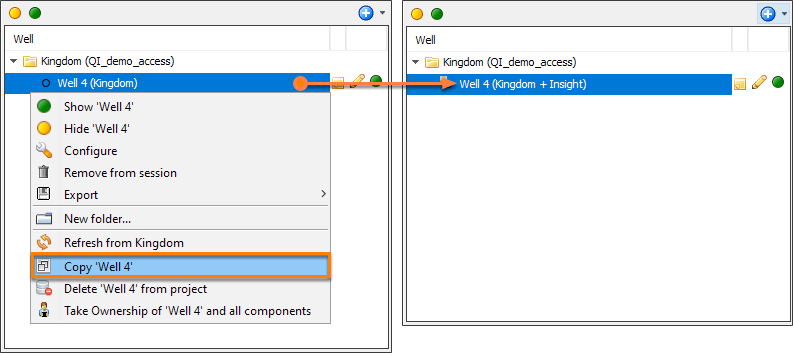
Items that are remotely linked will be listed in the tree and indicated as "Kingdom". In order to edit this item in Insight, you should create a local copy in Insight.
- Right-click the remote item.
- Click Copy [well name]. Insight will then create a local copy of the remote item. This item will then be indicated as "Kingdom + Insight".
Once a local copy has been created, it can no longer be un-checked in the Manage Remote Resources window because it could result in losing information created in Insight.
Refresh from Kingdom database
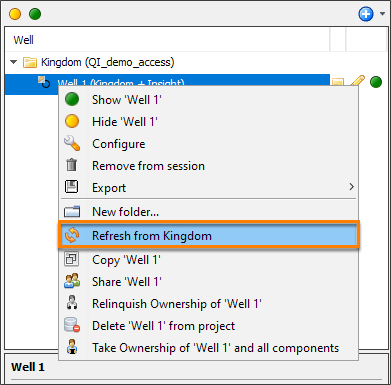
For a remotely linked item, you can refresh the item to ensure that changes that have been made to the item in the Kingdom database will be updated in Insight.
- Right-click the item.
- Click Refresh from Kingdom. All changes that have been made to this item outside of Insight will be updated in Insight.
Note: Refreshing an un-indexed Kingdom volume will start the indexing of the volume (see Indexing Kingdom volumes above).
Note 2: If the item was locally copied (Kingdom + Insight) and changed in both Insight AND in the Kingdom database, refreshing the well will cause the Conflict Resolution window to appear to give you the option to keep either the Insight version, the version in the Kingdom database or both. If you choose to keep both, it will unlink the Insight item from the Kingdom item and create a new version of each in Insight (the Insight-modified version and the Kingdom-modified version). A new remote product is created for the item modified in Kingdom and will retain its name, while the item that was modified in Insight will be renamed to "[Item name] [current date/time]" (i.e. Well X 2014-01-15 09:25:10).