Downloading and Installing SQL Server
A Kingdom project that is stored as a Microsoft SQL database needs to be attached to an SQL Server instance before it can be linked in Insight. Follow the steps below to download and install Microsoft SQL Server Express edition for free from Microsoft's website.
Insight will automatically attach Auto SSE projects to SQL Server when connecting. If you have a manual project, or your database is not auto-attaching, try Manually Attaching Kingdom SQL Database. To do that, you will need to Download and Install Microsoft SQL Server Management Studio.
If you, or someone you share the project with, plan to open the project using Kingdom in the future, see SQL Server versions and backwards compatibility.
Note: SQL Server Express has backward compatibility issues. Kingdom has updated its bundled version of SQL Server Express over the years. Once a Kingdom database has been opened in a more recent version of Kingdom, the database is no longer compatible with older versions of SQL Server Express. This can be resolved by upgrading your SQL version to match the current Kingdom version, per the guide below. If returning the original Kingdom project to your customer, make a copy of the Kingdom project before connecting to DUG-Insight. If you're unsure please contact support@dug.com.
Guide to Kingdom and SQL versions:
- Kingdom 2026 requires SQL Server Express 2025 or SQL Server Express 2022
- Kingdom 2025 requires SQL Server Express 2022 or SQL Server Express 2019
- Kingdom 2023 requires SQL Server Express 2019
- Kingdom 2022 requires SQL Server Express 2019 or SQL Server Express 2016 SP2
- Kingdom 2021 requires SQL Server Express 2019, 2017, 2016, or 2014
Downloading SQL Server Express
Microsoft SQL Server Express is a powerful and reliable free data management system that delivers a rich and reliable data store and it works great to attach a Kingdom project database.
- Go to Microsoft's official download page: https://www.microsoft.com/en-us/sql-server/sql-server-downloads.
- Download the Express edition that matches the SQL Server version required for your Kingdom version, per the guide above.
Installing SQL Server Express
Run the downloaded installer and follow Microsoft's setup wizard. When prompted, choose New SQL Server stand-alone installation, then use the following DUG Insight-specific settings at each of these steps:
-
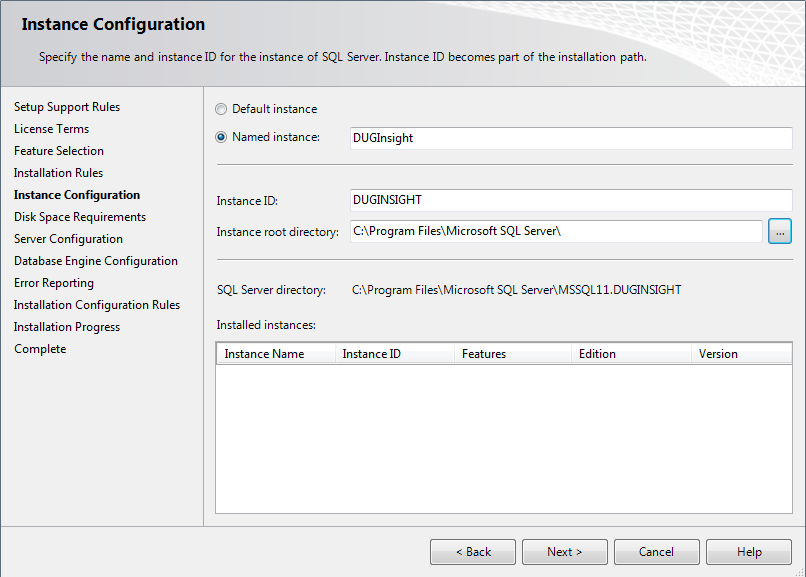
In the Instance Configuration window,
-
Named instance: Type "DUGInsight" as the instance name.
-
Instance ID and Server directory will be renamed accordingly.
-
-
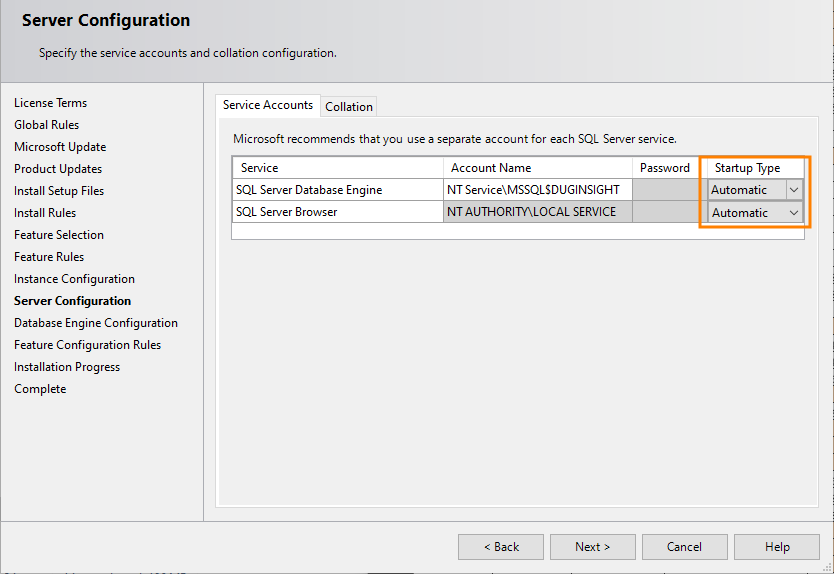
In the Server Configuration window,
- Startup Type: select Automatic.
-
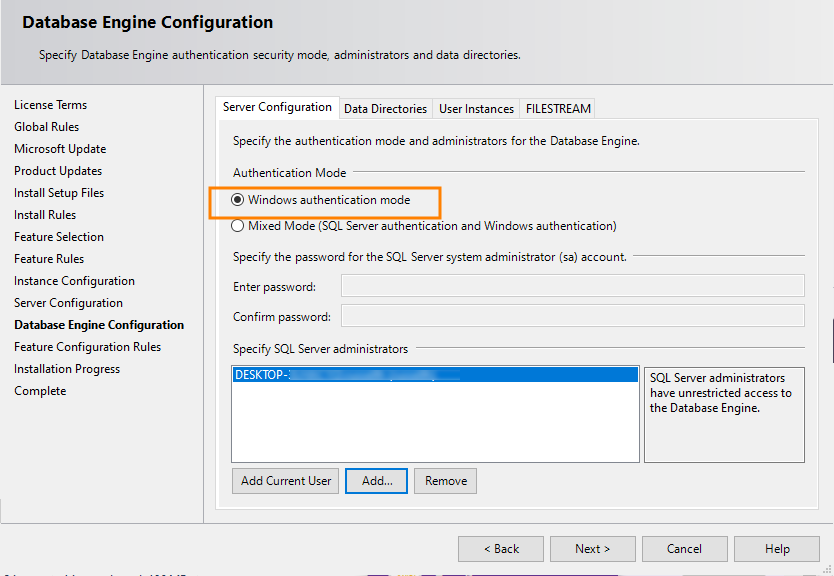
In the Database Engine Configuration window,
- Select Windows authentication mode, and add the relevant user(s) as administrators.
Proceed to Configuring the Kingdom Link to begin linking items from your Kingdom project.