Specifying Header Locations (3D SEG-Y)
Mapping the byte locations of the headers is the most involved part of the loading process. It is possible that your data may have its values in unusual locations or formats in the SEG-Y files. The SEG-Y Loader will attempt to identify the most likely positions, but to correctly import your data, these must be confirmed. It will display a warning if it detects an unlikely value mapped to an important data, i.e. sample interval (dt), first sample delay (delrt), inline, crossline, X or Y. This allows you to remap the headers before proceeding to the next step in the wizard.
To aid the remapping process, the Specify the byte locations of headers window has a number of useful tools including EBCDIC Header, Binary Header and Trace Header (see Investigating SEG-Y Headers).
Remap headers for vertical extents
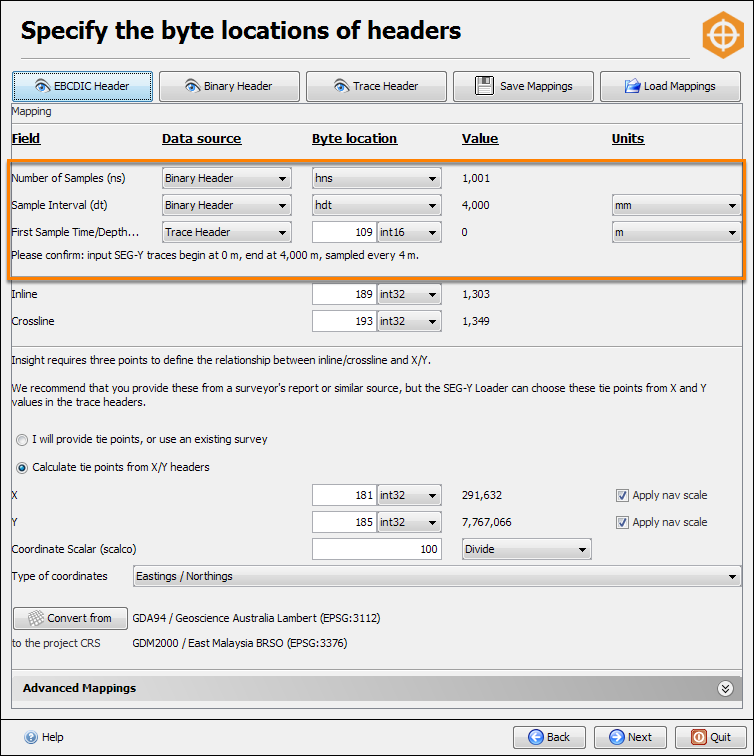
The first three fields at the top of this window define the vertical extent of the whole volume.
- Number of Samples — By default, this value comes from the binary header and is usually correct. If necessary, you can define a constant value. This value is probably the most important as everything will not be loaded properly if it is wrong.
- Sample Interval — By default, this value comes from the binary header and is usually correct. It is recommended to always double-check the unit of measurement. For time-domain data, the standard unit used is microseconds, which is usually true. Meanwhile, data in depth-domain is normally sampled in metres or feet.
- First Sample Time/Depth — This value defines the time/depth where all traces begin. Based on the standard SEG-Y format, the byte location for this is at 109 and is usually correct.
Note: If you are loading SEG-Y data that is exported from Kingdom, you must change the byte location for this field to "105" as Kingdom writes this information at that byte location.
Note: Number of Samples and Sample Interval must accurately match the input SEG-Y. If you want to load only a subset or resample the data, changing the values for Number of Samples and Sample Interval will cause you to have wrong results from the loading. Currently, you cannot use the SEG-Y Loader to resample or vertically clip the data. However, you can do these in Insight when you export the volume (seeExporting a Volume to DUG I/O andExporting a Volume to SEG-Y).
If you are loading gathers, you can specify the measurement units for offset (in offset ensemble volume) and sample interval (in depth volume) to either metric or imperial system of measurement when you load the SEG-Y data. Available options of measurement units include metre (m), decimetre (dm), millimetre (mm), centimetre (cm) and feet (ft). Subsequently, you can still switch between using imperial or metric measurement system in Insight.
Remap headers for horizontal extents
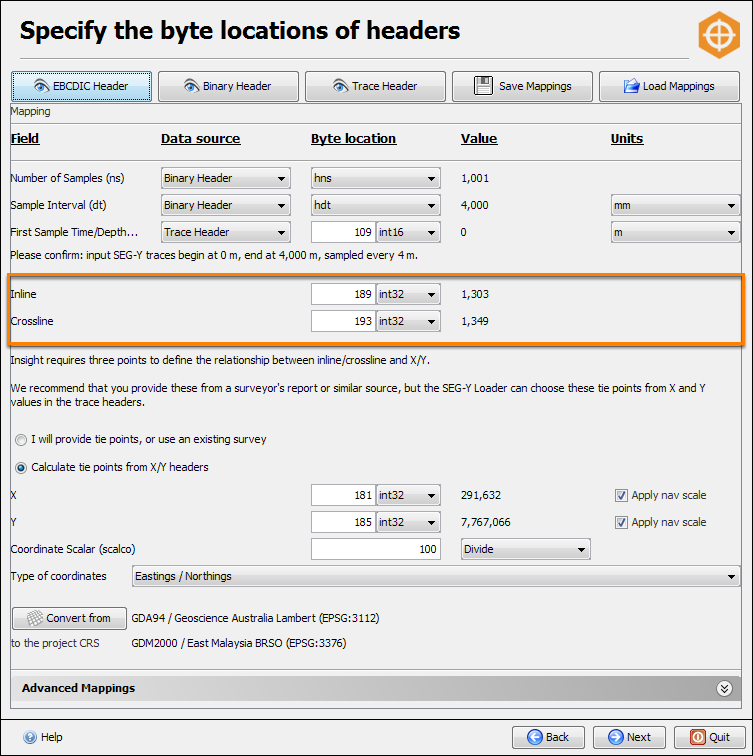
When loading 3D data, you need to specify the Inline and Crossline headers to define the horizontal extents of the volume. Based on the SEG-Y standard, the inline and crossline headers are placed at bytes 189 and 193 respectively. However, it is uncommon for software to actually conform to this standard. Hence, you can click on EBCDIC Header to look for information on the values of the inline and crossline, and then click Trace Header to remap the headers that match the inline and crossline values at the corresponding byte locations (see Investigating SEG-Y Headers).
Remap X and Y for navigation data
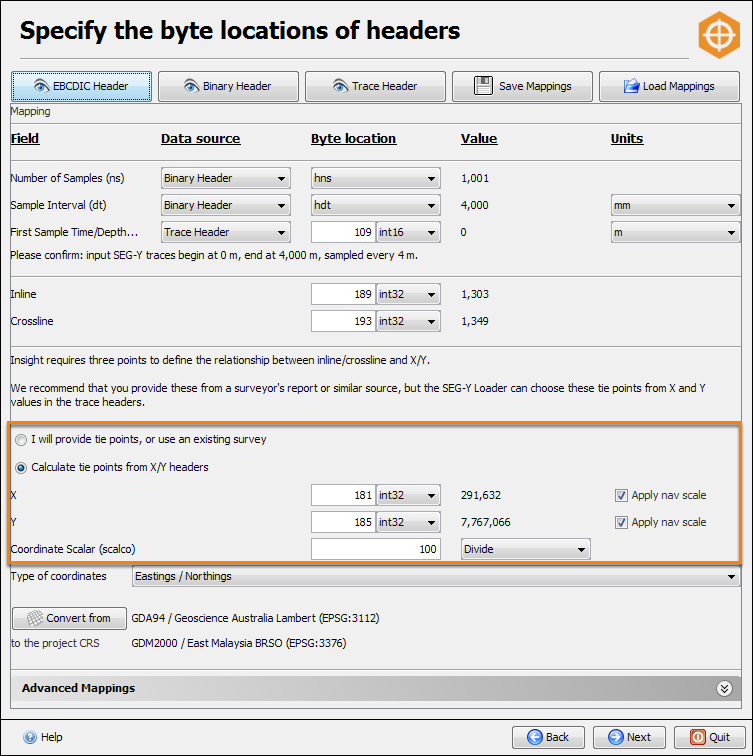
Navigation data is important to create a survey. A 3D survey in Insight defines the tie points between inlines/crosslines and eastings/northings (X/Y). There are two methods that you can select to define the navigation data:
- User will provide tie points, or use an existing survey — Select this option if you have already created a survey (when loading a previous volume) and this data belongs to the same survey. Also, select this option if you want to provide at least three tie points that define the relationship between inlines/crosslines in regards to X/Y points. With this option, you do not need to remap the X and Y headers. By default, this is the option selected when you load 3D data. For 3D data, you are strongly advised to obtain the information from a surveyor’s report or a similar source than to use the automatic calculation of tie points in the SEG-Y Loader. The automatic calculation depends on a correct mapping of the X/Y trace headers that are usually inconsistently located and often filled with incorrect values.
- Calculate tie points from X/Y headers — With this option, you must map the X and Y headers that contain sensible data. The standard locations for X and Y are bytes 181 (ENSEMBLE X) and 185 (ENSEMBLE Y), but it is also common to find these values at bytes 73 (SX) and 77 (SY), or 81 (GX) and 85 (GY). These values are usually encoded as int32, but in rare cases, they may be encoded as floats or IBM floats.
The following describes the automatic calculation of tie points from the X/Y trace headers in the SEG-Y Loader for 3D volumes:
3D volume
Analysis takes three of the corners of the survey. Unlike many other packages, the SEG-Y Loader does not require the tie points to be at the corners. Instead, any three non-collinear points are acceptable. The system chooses the corners by default because it is easy and you may want to take them and use in another package (seeAnalysing 3D Data).
Convert Coordinate Reference System (CRS)
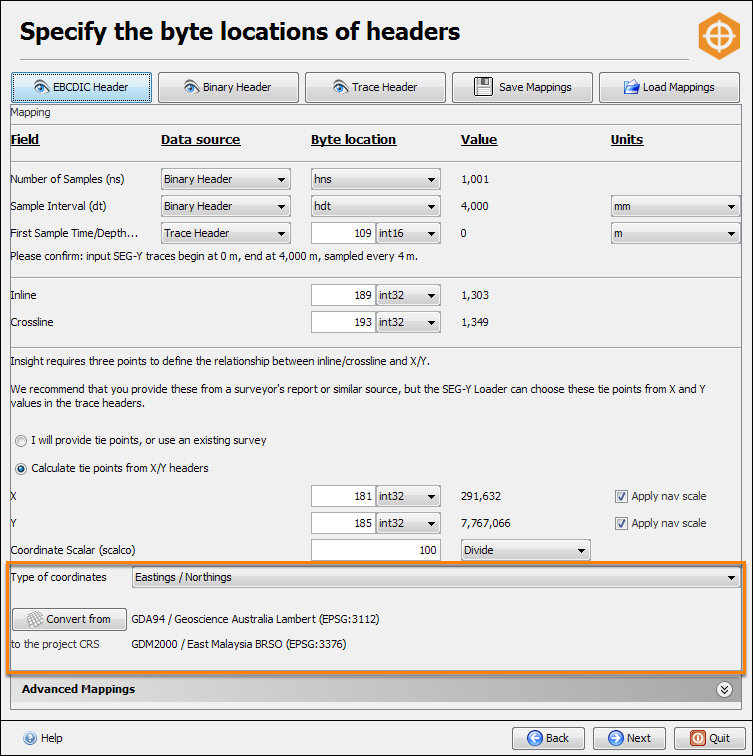
In the Specify the byte locations of headers window, you can convert the SEG-Y coordinates to the project's coordinate reference system (CRS). This option is only available if you have a project CRS defined (seeCreating a Project).
- Select the Type of coordinates (Eastings/Northings or Latitude/Longitude).
- Click Convert from to specify which CRS to convert from. The Standard CRSTable will be displayed.
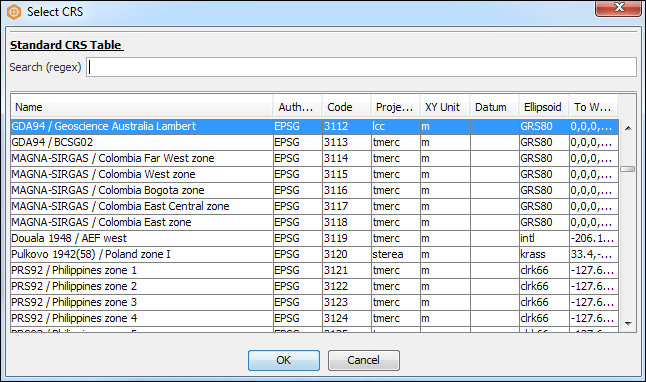
- Type your preferred CRS in the Search (regex) bar and the table will automatically filter accordingly.
- Select a CRS and click OK. Alternatively, double click on the CRS to select it.
- Insight will automatically detect your project CRS to convert to.
- Click Next to proceed to the next step.
Save Mappings
Click this to save your current header remapping settings to a .sdmap file. These can be used to quickly remap other SEG-Y files that share an identical data structure.
Load Mappings
If you have an existing .sdmap file created, click this to use this file to map the headers. This is a quick way to map the headers of identically structured SEG-Y files.
Genuine offer of assistance
DUG understands that importing SEG-Y data can be a confusing task.
Whether you are using a trial version or a fully-paid licence, we will help you to import your data to Insight so that you will get the maximum out of your data.
For more details, contact support at support@dugeo.com.