Exporting a Horizon
Horizons can be exported to text or GEOH5 files. The file structure of the text files depends on the selected format, but in general each row of the output file corresponds to a point on the horizon.
By default, Insight will save horizons in the 120hors sub-folder.
- Exporting a base horizon
- Exporting a complete horizon
- Exporting a customised horizon
- Exporting horizon to a GEOH5 file
Note: For more information on exporting horizon files, see Horizon Export File Formats.
Types of horizon export
- Base horizon: A text file containing rows of location and time or depth for a single 2D or 3D survey, or X/Y. It does not include additional properties.
- Complete horizon: A complete horizon containing location, time (or depth), and any additional custom properties, for one or more 2D and 3D surveys.
- Customised horizon: A text file containing rows of location, time, depth, and selected custom properties.
- GEOH5: A geoscience data exchange format used in the minerals industry. Exporting multi-Z horizons to GEOH5 is currently not supported.
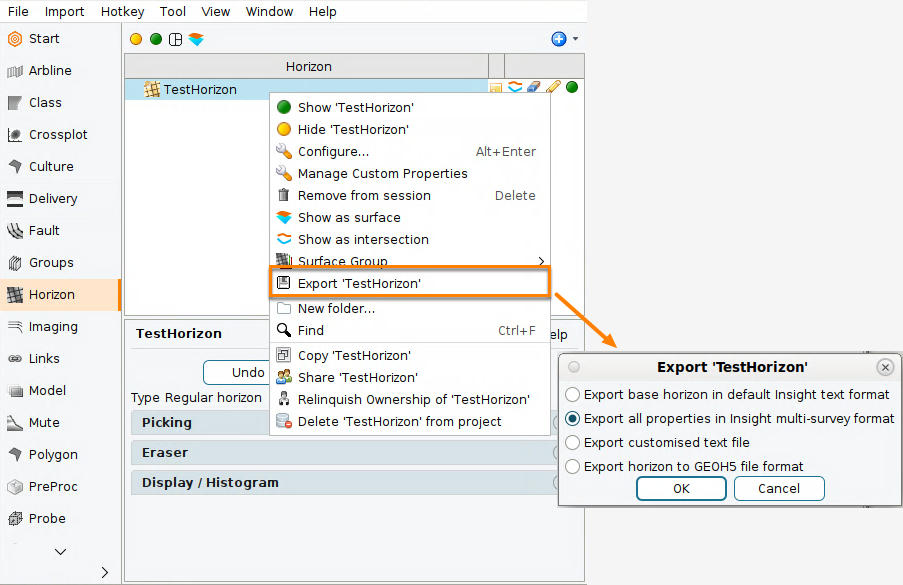
- In the Control Panel, open the Horizon tab.
- Right-click the 2D or 3D horizon and select Export 'Horizon'.
- The Export 'Horizon' window is displayed.
Exporting a base horizon
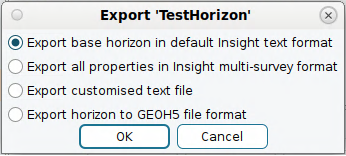
The export base horizon option is only available for 3D horizons.
- Select Export base horizon in default Insight text format.
- Click OK.
- Save the file as .ilclt (time) or .ilclz (depth).
- Click Save.
Tip: If the horizon extends across multiple surveys, select Export all properties in Insight multi-survey format.
Exporting a complete horizon
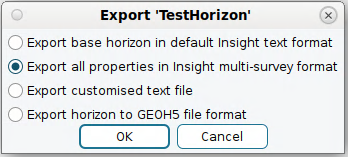
- Select Export all properties in Insight multi-survey format.
- Click OK.
- Save the file as .dugmsh.
- Click Save.
Exporting a customised horizon
-
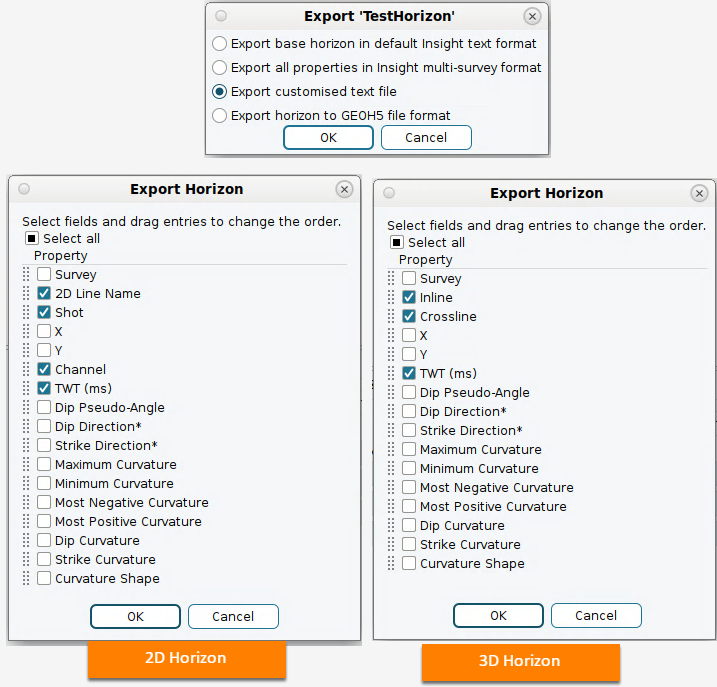
Select Export customised text file.
-
Click OK.
-
The Export Horizon window will appear.
-
Select the field to be exported.
-
To change the order of the fields, click and drag the dotted area to the left of the field name.
-
Click OK.
-
Type the file name to save in .dat format.
-
Click Save.
Exporting horizon to a GEOH5 file
Note: GEOH5 support is currently available on Windows and Linux only. If you need to work with GEOH5 files on macOS, contact DUG Support.
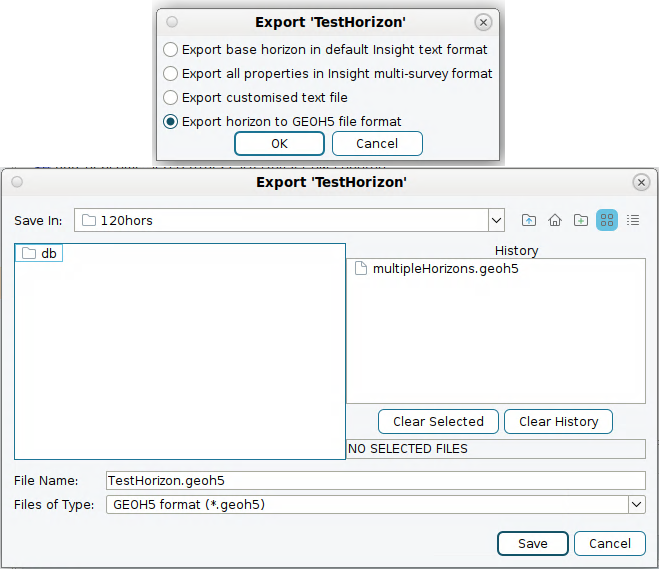
- Select Export horizon to GEOH5 file format.
- Click OK.
- Select the destination folder and click Save.
Note: Horizons are always exported in TVDSS (depth) as the base geometry. If the horizon was picked in TWT, TWT values are also included as an additional property in the exported file.
Note: If a horizon is in TWT and no velocity model is configured for depth conversion, the export will fail with an error. Set up a velocity model before exporting.